You fill in a government form, a job application or a visa checklist, attach your scanned documents, and the portal rejects the upload: "File size must be under 1 MB". Or an email bounces because the attachment is too large. A PDF that is far bigger than it needs to be is one of the most common small frustrations of working online.
The free Compress PDF tool on EverythingTool shrinks a PDF in a few seconds, and you choose how aggressively. This guide explains how to pick the right setting and what to expect.
Why PDFs get so large
Text and vector graphics take very little space. The weight almost always comes from embedded images: scanned pages, phone photos of documents, and high-resolution pictures pasted into presentations. A 10-page scan from a phone can easily reach 20 MB or more, while the same pages as plain text would be well under 1 MB.
How the tool works
You upload a PDF of up to 50 MB, choose a compression level, and download the result. The page shows how much space you saved. Importantly, text, vector graphics and fonts stay sharp at every level. Only the embedded images are resampled. If compressing would somehow make the file larger, you simply get your original back unchanged.
Choosing a level
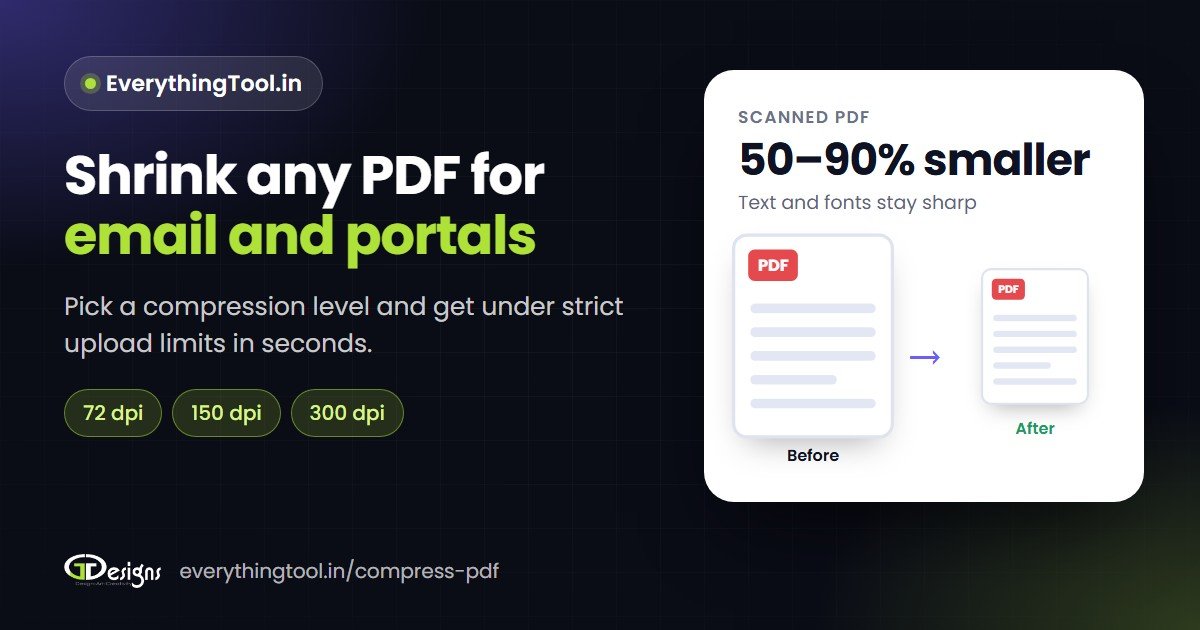
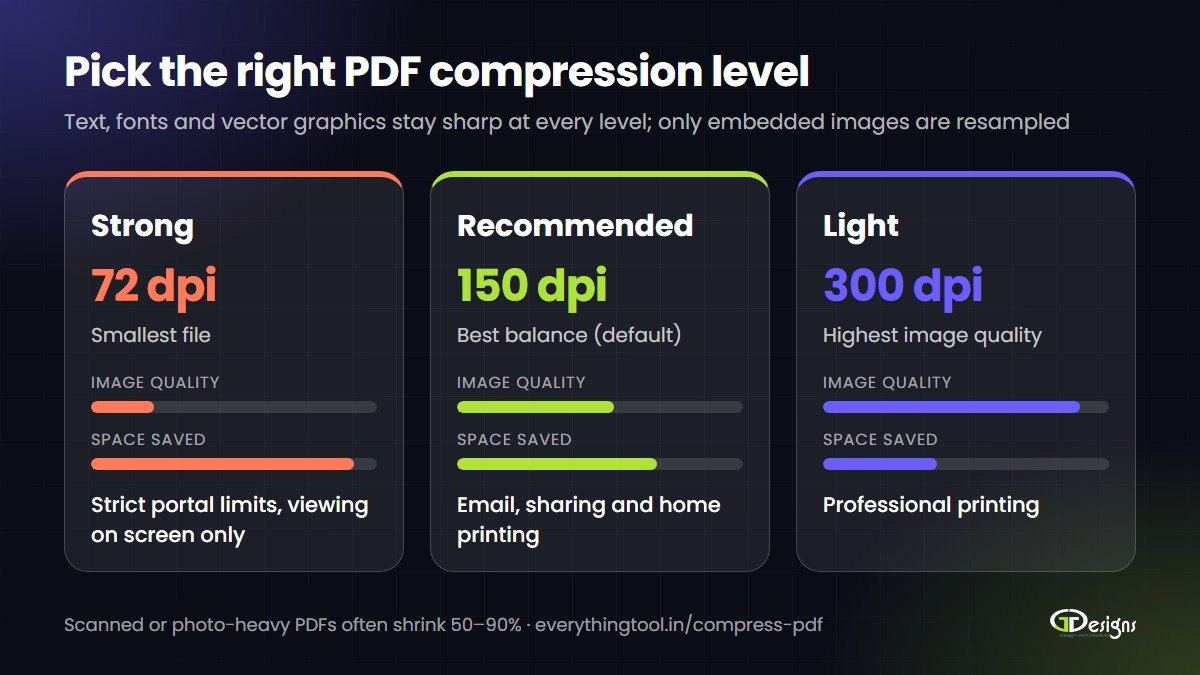
- Strong (72 dpi) gives the smallest files. Use it when a portal enforces a strict limit and the document will only be viewed on screen.
- Recommended (150 dpi) is the sensible default. It suits email, sharing on WhatsApp and printing at home.
- Light (300 dpi) keeps higher image quality for professional printing.
Start with Recommended. If the file is still too big for your limit, run the original again on Strong. Always compress the original rather than an already-compressed copy, because repeated compression only degrades quality.
What savings to expect
It depends on what is inside. Scanned or photo-heavy PDFs often shrink by 50 to 90 percent. PDFs that are mostly text shrink much less, because there is little to compress. If your text-only PDF barely changes, that is normal, not a fault.
Tips for getting under a tight limit
- Scan at a sensible resolution. 150 to 200 dpi is enough for reading and for most uploads. Scanning at 600 dpi creates huge files for no benefit.
- Avoid colour when you do not need it. A black-and-white scan is far smaller than a colour one.
- Crop out empty margins and remove blank pages before you scan or export.
- Split very large files. Several smaller PDFs are often easier to upload than one huge one.
- Check the result. Open the compressed file, zoom in on small print and signatures, and confirm everything is still readable before you submit it.
A note on privacy
Compression needs server processing, so your file is uploaded over HTTPS. EverythingTool states that the original and the compressed copy are deleted automatically within one hour and are not shared. That is a reasonable safeguard for everyday documents. For highly sensitive files, such as full identity documents or confidential contracts, use your own judgment, and consider masking details you do not need to share.
Try it now
There is no sign-up. Upload, pick a level, download. Compress a PDF now. While you are there, you will also find tools to turn JPG images into a PDF, convert a PDF to JPG and add page numbers, all free at EverythingTool.in.